1. What to Prepare Before Integration
1. Hardware Device
- A working UV printer (must be purchased beforehand).
2. Software Packages (obtain from technical support)
You need to obtain two software programs:
| Software | Purpose |
|---|---|
| Printer Software (PrintExp) | Connects to the printer and controls inkjet printing. |
| Internet Interface Printer Client Software | Converts the images you send into a format the printer can recognize, then transmits them to the printer. |
3. Technical Preparation
- Ability to call API interfaces (send HTTP requests).
- Ability to use HTTPS (security protocol).
- Note: All interface requests must use HTTPS; do not skip certificate verification, to prevent hijacking.
2. Internet Interface Printer Client Software — Product Classification
| Type | Callback | Product Channels | Applicable Product Types | Full / Semi-Auto | Software Name | # of Channels | Screen Orientation | Product Features |
|---|---|---|---|---|---|---|---|---|
| Desktop | Has callback | No channels | All general-purpose | Semi-auto | Internet Interface Desktop Edition | — | Portrait, Landscape | Supports manual / interface / automatic print modes |
| Kiosk | Has callback | Has channels | Badge (吧唧), coin, fridge magnet, commemorative coin, acrylic board, etc. | Full-auto | Scan-to-Pay Coin Kiosk | 2, 3, 4 | Portrait, Landscape | Supports automatic printing / remote push of video ads |
3. Install the Software
Printer Software (PrintExp) installation steps:
- Double-click the installer.
- Click "Next".
- Click "Install".
- Click "Finish".
- The "Microsoft Common Runtime Libraries" dialog pops up — click "Next" → "Next" → "Finish".
Software interface:
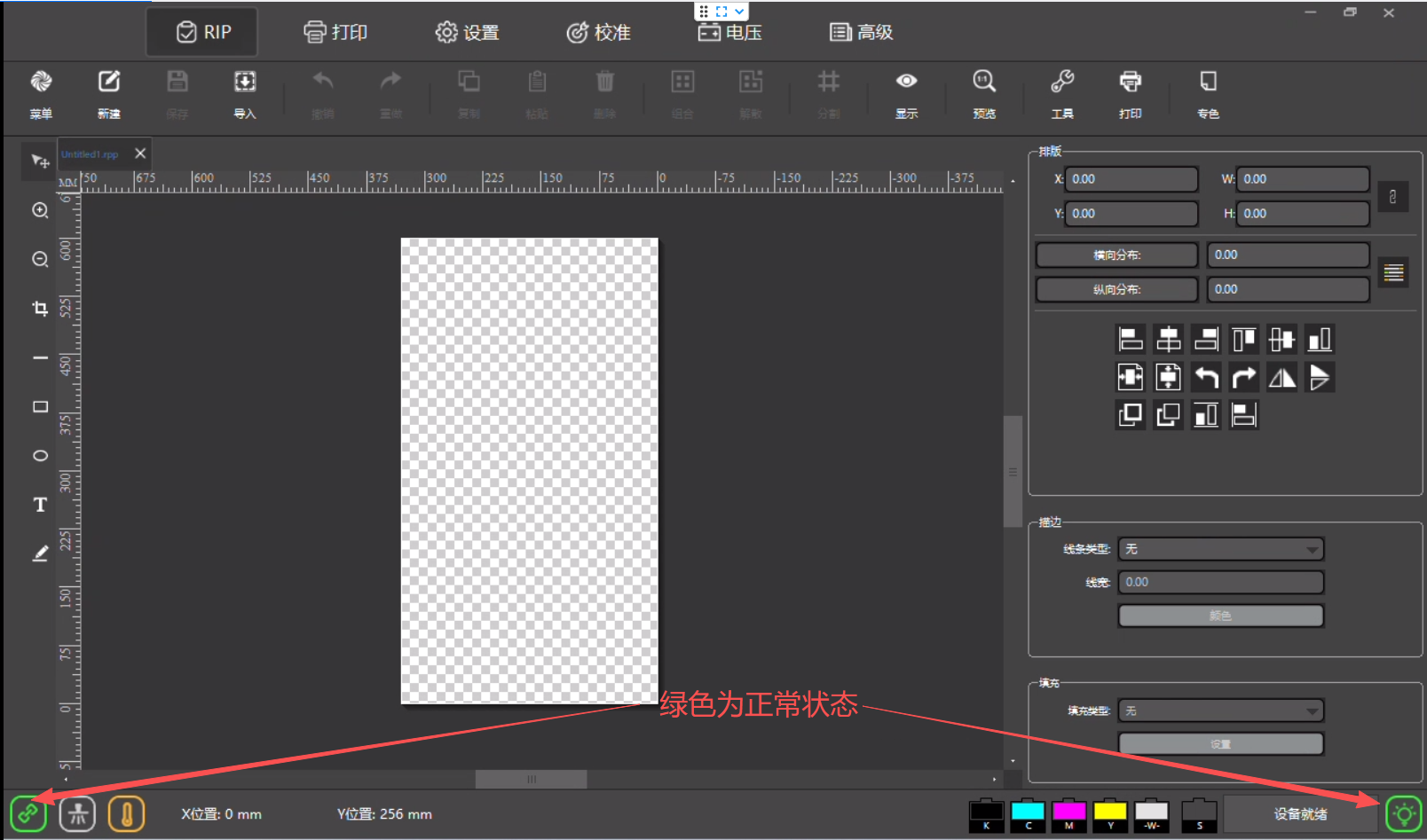
Internet Interface Printer Client Software — installation flow:
- Double-click the installer.
- Click "Next".
- Click "Install".
- Click "Finish".
Feature images of different versions (obtain the latest version from technical staff):
| Version | Feature | Image |
|---|---|---|
| Desktop | Button / Interface / Automatic | 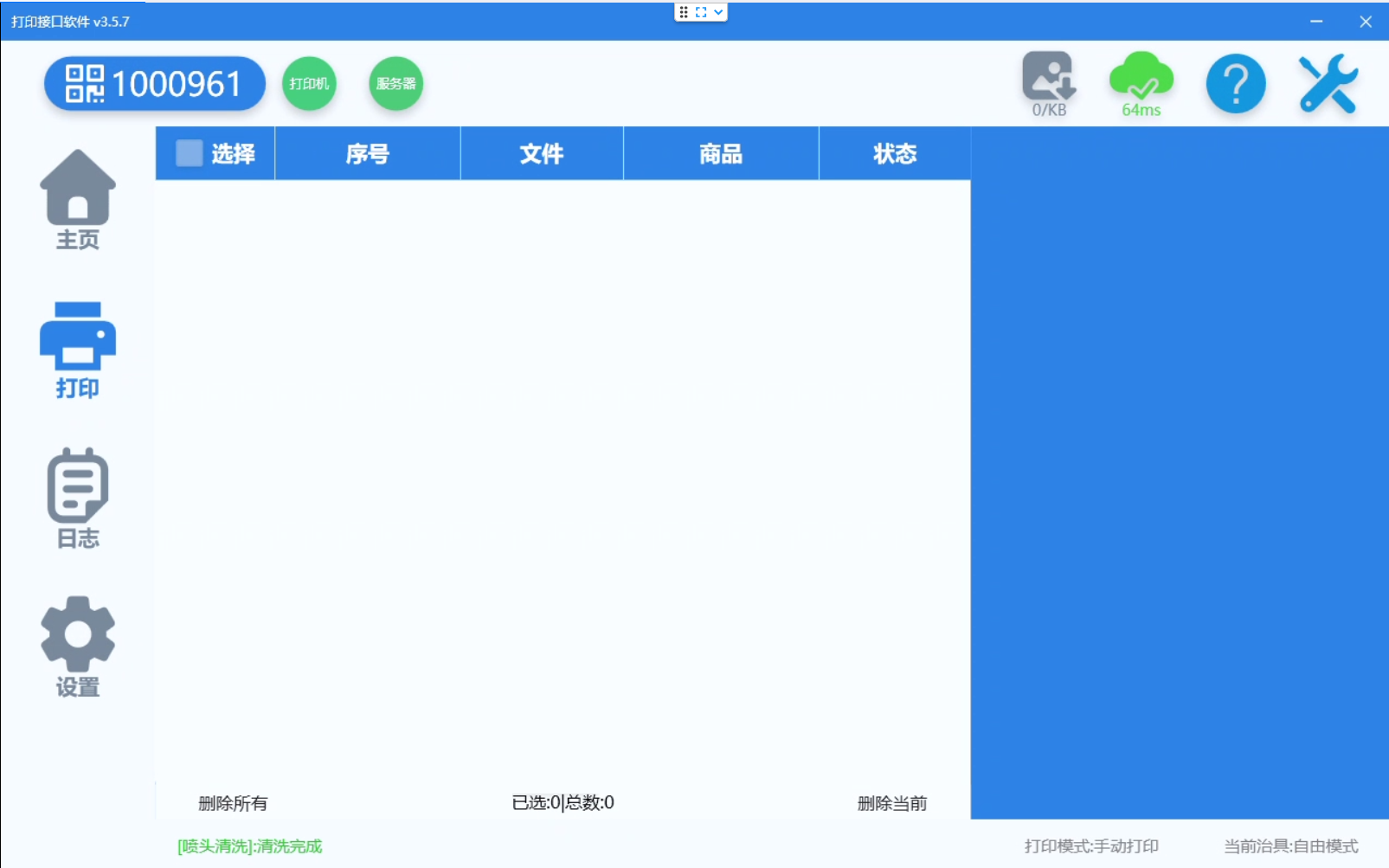 |
| Kiosk Landscape | Landscape / self-service printing / video ads |  |
| Kiosk Portrait | Portrait / self-service printing / video ads |  |
4. Parameter Preparation
1. Generate the Signature
Refer to the document Generate Signature.
2. Measure the Material
- Refer to the document to complete the measurement: Measure Material.
- Then call the interface with the required parameters.
5. Interface Debugging
Complete the following interface debugging in order:
- Send Print Job (single order);
- Start Print Job;
- Query Print Job;
- Cancel Print Job.
6. Understand the Two Printing Methods
Single-Order Printing
What it means: Call the interface once to create only one order and print one product.
Characteristics:
- Only one order can be printed at a time.
- You cannot select multiple orders to print together.
- The client software defaults to a no-fixture type; switching to other fixtures prevents printing.
How to use: Call interface /api/Printer/mulPrint to place the order, then click Print in the client software.
Merged-Order Printing
What it means:
- Method 1: Call the interface multiple times, each creating one order, then select multiple orders to print at once. (Call
/api/Printer/mulPrintto place the order — the same interface as single-order printing, but with the added merge-order flagis_mergeand the product unique identifierunique.) - Method 2: Call the interface once to create multiple orders, then select multiple orders to print at once. (Call
/api/Printer/mergedPrintto place the order.)
Characteristics:
- One interface call can batch-create orders.
- You can switch between different print-fixture templates.
- Multiple orders can be selected for one-time printing — higher efficiency.
How to use:
- Contact after-sales to configure the print-fixture template (the reseller provides precise size and print-position information).
- Call the "Query Products of a Designated Fixture" interface to obtain the fixture identifier (
fixture_id) bound to the device and the product unique identifier (unique). - Call the merged-print interface, passing the product identifier
uniqueto place the order. - Open the client software → click "Current Fixture" to select the print fixture → click "Confirm".
- Select multiple orders → click "Start Printing" → view the preview → click "Print".
Source note: The original document uses both 合并 (merge) and 合成 (combine) for this concept. They refer to the same merged-order printing feature; this translation consistently uses "merged-order printing".
7. Configure Real-Time Callback (Optional)
What is a callback? When the print status changes, the system automatically notifies your server — for example, when printing completes or fails, you receive the message in real time.
Configuration location: Device List → Details → Callback Address
Three configuration methods:
| Scenario | For Whom | How to Configure |
|---|---|---|
| Scenario 1 | Reseller who develops their own system | Fill in your own server address to receive print-status messages. |
| Scenario 2 | Reseller who does not develop, only wants to view status on the provider platform | Fill in the provider-supplied address: https://tprint.colorpark.cn/api/OpenCallBack/printerCallBack |
| Scenario 3 | No callback needed | Leave empty — no messages are pushed. |
Callback message types:
- Print Job Callback — tells you the print status of an order.
- Printer Status Callback — tells you the printer's own status (online, offline, fault, etc.).
Congratulations — you have completed the basic debugging of the Internet interface. Go integrate it into your application!
8. Frequently Asked Questions (FAQ)
Q1: Must I buy a printer before integration?
A: Yes. You must first purchase the UV printer hardware and ensure it runs normally, then install the software to integrate.
Q2: Where do I get the software installer?
A: Contact Ruifengcai technical support to obtain the latest software installation package.
Q3: What is the difference between the Desktop and Kiosk editions?
A:
- The Desktop edition is semi-automatic, suited to general scenarios, and requires human involvement.
- The Kiosk edition is fully automatic, has product channels, suits specific products like badges and coins, and can also play ads.
Q4: How do I choose between single and merged printing?
A:
- If you print only one product each time, use single printing.
- If you need to batch-print multiple products, use merged printing for higher efficiency.
Q5: Is the callback address mandatory?
A: Not mandatory. A reseller may choose not to configure it; if real-time print-status messages are not needed, it can be left empty.
Q6: Why did my interface call fail?
A: Common causes:
- HTTPS not used.
- Signature generated incorrectly.
- Material size measured inaccurately.
- Parameter format incorrect.
Q7: What if the printer goes offline?
A: Cloud printing supports offline-resume printing. The job is staged in the cloud and automatically pulled for continued printing once the printer comes online — it will not be lost.
If the device encounters an unsolvable issue during debugging, contact the cloud-printing responsible person for troubleshooting and a resolution. Contact details:
Phone: 137-5177-4454 (same number on WeChat)
Email: info@ColorPark.cn